
How do you manage the Uber Eats and Deliveroo tablets mid-rush without missing orders?

By Tom Voisin, founder of Deliview Published Updated 8 min read
No commitment.
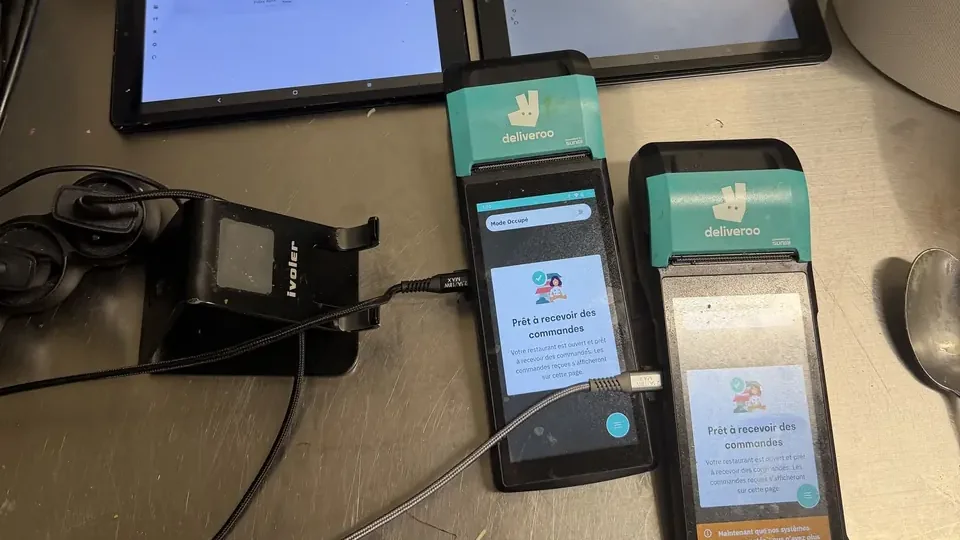
Uber Eats and Deliveroo have settings for busy nights, but their buttons don’t always have the same name. Here are the ones documented on their help pages, consulted on 1 October 2026, followed by the station set-up that limits missed orders.
How do you get the Uber Eats or Deliveroo tablet, and how much does it cost?
Both platforms provide a tablet when you sign up, but neither publishes a purchase price. You can also receive your orders on a computer or on your own tablet, in Google Chrome. Here is what their pages say, consulted on 26 October 2026.
Uber Eats. The tablet, fitted with the Orders app, is part of the one-off “frais d’activation” (activation fees). These fees also include a welcome kit, software and a photo shoot, and their amount is not published. The tablet remains Uber’s property: lost, stolen, damaged (apart from normal wear and tear) or returned late, it costs you €150, according to the Uber Eats contract.
Its pricing page shows a weekly subscription: €1.99 with your own device, €3.99 with a tablet, €5.49 with the printer. A note on the page, however, reserves these plans for Japan: your subscription is the one in your Order Form. The Orders app can also be installed “free of charge” on your tablet or your computer, according to its page (translated from French). It only opens in Google Chrome.
Deliveroo. Deliveroo provides “a tablet with a built-in printer”, according to its FAQ (translated from French). An older help page says it is free and delivered in 1 to 3 working days. Its pages mention neither a deposit nor replacement fees. Without its tablet, the Partner Hub opens in a browser, on a tablet or a computer kept for orders. Deliveroo recommends Google Chrome and advises against using a phone.
With your till. Uber Eats doesn’t charge fees for linking its orders to your till system. Your till provider may charge some: Uber Eats advises asking them.
The sign-up steps are in our guide to selling on Uber Eats and Deliveroo.
Which settings do Uber Eats and Deliveroo offer for busy nights?
Both platforms let you add preparation time, pause new orders and remove a sold-out dish. The button names vary from one tablet to the other.
| Need | Uber Eats (Orders app) | Deliveroo |
|---|---|---|
| More time for new orders | “Occupé” (busy): you choose the preparation time to add | “Occupé” (busy) mode: button at the top right of the tablet, then the time you want |
| More time for a single order | “Modifier” (edit) on the order’s preparation time | “Besoin de plus de temps” (need more time) delays the rider’s arrival |
| Stop receiving orders | “Interrompre” (pause), for the length of time you choose | “Fermer maintenant” (close now) in the Partner Hub |
| Print tickets | Auto-print: “Paramètres” (settings), then “Impression de reçus” (receipt printing) | Sunmi tablet: printing by default if Bluetooth is turned on |
| Remove a sold-out dish | Menu, “En stock” (in stock) button: for the day or for an indefinite period | “Niveaux de stock” (stock levels): “Épuisé aujourd’hui” (sold out today) or “Cacher du menu” (hide from menu) |
On Uber Eats, “Occupé” and “Interrompre” sit behind the same “Ouvrir” (open) button, in the right-hand corner of the “Commande” (order) tab. The Orders app guide details each step. To return to normal, tap “Commandes interrompues” (orders paused), then “Ouvrir”.
At Deliveroo, busy mode is for when the kitchen is overwhelmed: staff shortage, equipment breakdown, a difficult peak such as a match night. Deliveroo advises against turning it on for the “usual Friday night peak” (translated from French). Used too often, it distorts the calculation of your preparation time. And as your orders then take longer, your ranking in the app can be affected.
Busy mode only applies to orders received after it is turned on. Turn it off as soon as the peak has passed, as Deliveroo’s help page asks. If an emergency brings the kitchen to a halt, Deliveroo also lets you show that you are temporarily closed.
Should you auto-accept orders?
On Deliveroo, auto-accept frees up the person who was watching the tablet. It assumes out-of-stock items are kept up to date, because an order accepted then cancelled costs you fees.
Once turned on, it applies to all “dès que possible” (as soon as possible) orders, whatever their size. Scheduled orders still have to be accepted by hand. The tablet must stay on, and it rings for two seconds with each new order.
If you can’t fulfil an accepted order, Deliveroo asks you to call its support and charges cancellation fees. According to its page on cancellations, these fees are equivalent to the commission and the other fees on the order. Without auto-accept, don’t let anything wait: an unanswered order is auto-rejected after 10 minutes.
On Uber Eats, the Orders app guide describes accepting order by order. The tablet flashes green and rings, you check the details, then you tap “Accepter” (accept).
How do you avoid selling a dish you no longer have?
Remove the dish as soon as you notice it has run out, on both platforms. Deliveroo is clear: if a customer orders an unavailable item, you will have to reject the order.
On Uber Eats, open the menu in the Orders app, find the dish and tap “En stock”. You then mark it out of stock for the day or for an indefinite period.
On Deliveroo, go through the Hub: “Commandes en direct” (live orders), then “Niveaux de stock”. “Épuisé aujourd’hui” puts the dish back online the next day at opening time; “Cacher du menu” removes it until you put it back. Deliveroo then reminds you to publish the menu for the change to apply.
If an item runs out in the middle of an order:
- Uber Eats: tap the three dots next to the item and mark it out of stock. The customer has 10 minutes to confirm or change their order, otherwise it is cancelled. The item stays unavailable until the next day.
- Deliveroo: tap “Gérer votre commande” (manage your order), then “Marquer le produit en rupture de stock” (mark the product as out of stock). The customer receives a basket without the item and can add to it. If they don’t order again, the cancellation is charged to you.
How do you organise the station so you miss nothing?
Put one person in charge of the tablets and place them where they can be heard. Then repeat the same routine for every order, from ticket to bag.
The tablets
Put both tablets side by side at the packing station, plugged in. Uber Eats advises keeping them charged and away from microwave ovens, which can cause interference. Deliveroo recommends a volume of at least 50% and sleep mode set to “Never”. Keep each app open: Deliveroo doesn’t guarantee notifications when the tablet is showing another app.
Who does what
During the rush, the same person accepts, prints, checks and hands over the bags. Deliveroo advises assigning one team member to delivery orders only if you have no hot-holding equipment. The kitchen, for its part, works from the printed tickets.
The order of preparation
Start each order as soon as it arrives, as Deliveroo recommends, without putting one platform ahead of the other. Tap “Commande prête” (order ready) on Deliveroo and “Prête” (ready) on Uber Eats for every order. Deliveroo calculates your preparation time from your orders over the last 14 days: doing this every time makes it more accurate.
The check before handover
Before closing the bag, compare it with the ticket: dishes, sauces, drinks, cutlery. Attach the ticket with the order number to the outside of the bag, with tape, as Deliveroo asks. When the rider arrives, check on the tablet which order they have come to collect: Uber Eats shows their name on the right of the screen.
Two tablets mean two ringtones and two menus to keep up to date. Deliview already brings your Uber Eats and Deliveroo data together on one screen: your prices, your ratings and those of your competitors. See how Deliview brings Uber Eats and Deliveroo together.
How do you prepare for the rush before service?
The rush is prepared before opening: stock checked, a lighter menu if the evening looks busy, packaging and printers ready.
- Out-of-stock items: check your stock and remove whatever will run short. On Deliveroo, “Épuisé aujourd’hui” only lasts one day: redo it every day for as long as the ingredient is missing.
- Reduced menu: on match nights or very busy nights, remove the dishes that take longest to prepare. Put them back online the next day.
- Packaging: prepare bags, boxes and portioned sauces. According to Deliveroo, preparing packaging before service can save “precious minutes” (translated from French).
- Printers: check the roll and print a test ticket before opening. Deliveroo advises testing your settings while the restaurant is closed, to avoid a printing problem in the middle of service.
- Preparation time: on Uber Eats, set your usual time in Uber Eats Manager, under “Paramètres”. On Deliveroo, it calculates it itself.
- Closing time: set it according to the last orders the team can still prepare. Deliveroo points out that orders placed at the end of the day must be fulfilled.
What you can do before your next service
Before opening, set up both tablets and the station by following this list.
- Set the volume on both tablets and turn off their sleep mode.
- Turn on auto-print on Uber Eats, then print a test ticket on each printer.
- Find “Occupé” and “Interrompre” on Uber Eats, and the busy mode button on Deliveroo.
- Update your out-of-stock items on both platforms, then publish the Deliveroo menu.
- Choose the person who will handle the tablets tonight.
- Put up a checklist at the packing station: dishes, sauces, drinks, cutlery, ticket on the bag.
A cancelled order disappoints the customer and prompts them to leave a negative review, Deliveroo notes. For what comes next, see how to improve your rating on Uber Eats and Deliveroo.
In Deliview
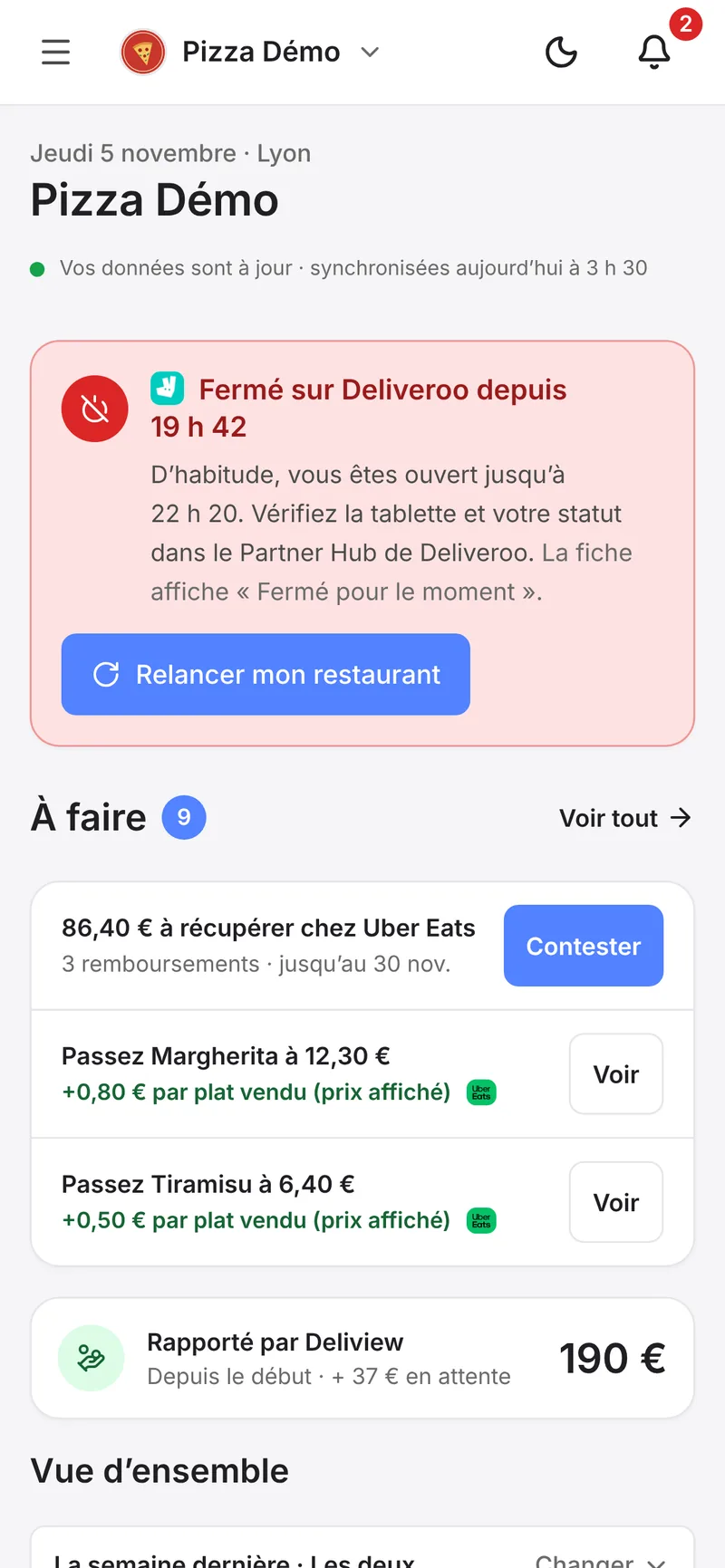
Closed mid-service? Deliview alerts you
A tablet switched off, a pause left on, and your restaurant disappears. Deliview checks it’s open every 10 minutes during your service hours.
Sources
- Guide des commerçants : Utilisez l’application Commandes sur Uber Eats, Uber, accessed 1 October 2026.
- Premiers pas avec votre imprimante et votre tablette, Uber, accessed 1 October 2026.
- Guide des commerçants : Comment utiliser Uber Eats Manager, Uber, accessed 1 October 2026.
- Conditions complémentaires Uber Eats pour les Partenaires, Uber, accessed 26 October 2026.
- Une tarification adaptée à votre entreprise, Uber, accessed 26 October 2026.
- Gérez votre activité avec l’application Commandes Uber Eats, Uber, accessed 26 October 2026.
- Guide pour les commerçants sur Uber : Comment intégrer votre système de caisse ?, Uber, accessed 26 October 2026.
- Foire aux questions, Deliveroo, accessed 26 October 2026.
- Join Deliveroo via our website - FR, Deliveroo, accessed 26 October 2026.
- Utiliser le mode Occupé pendant les périodes de pointe, Deliveroo, accessed 1 October 2026.
- Acceptation automatique des commandes, Deliveroo, accessed 1 October 2026.
- Comprendre les commandes annulées et comment les réduire, Deliveroo, accessed 1 October 2026.
- Gérer les commandes en cours dans Portail Partenaire, Deliveroo, accessed 26 October 2026.
- Comment marquer les articles du menu comme indisponibles ?, Deliveroo, accessed 1 October 2026.
- Substitution de produits - Restaurant uniquement, Deliveroo, accessed 1 October 2026.
- Comment fonctionnent les temps de préparation, Deliveroo, accessed 1 October 2026.
- Comment les temps de préparation sont-ils établis ?, Deliveroo, accessed 1 October 2026.
- Configurer votre tablette Sunmi, Deliveroo, accessed 1 October 2026.


